Maximizing Bluetooth Performance: Tips to Avoid Lag, Drops, and Connection Issues
Bluetooth is a wireless technology that most people rely on every day. Whether you’re connecting headphones, speakers, smartwatches, or even keyboards, the process seems simple until it doesn’t work. When it fails, it’s frustrating. To improve Bluetooth performance, you need to first understand what it’s doing. It works by using short-range radio waves to communicate between devices. While convenient, Bluetooth has its limitations, especially with range, interference, and competing connections.
Keep Devices Within Ideal Range
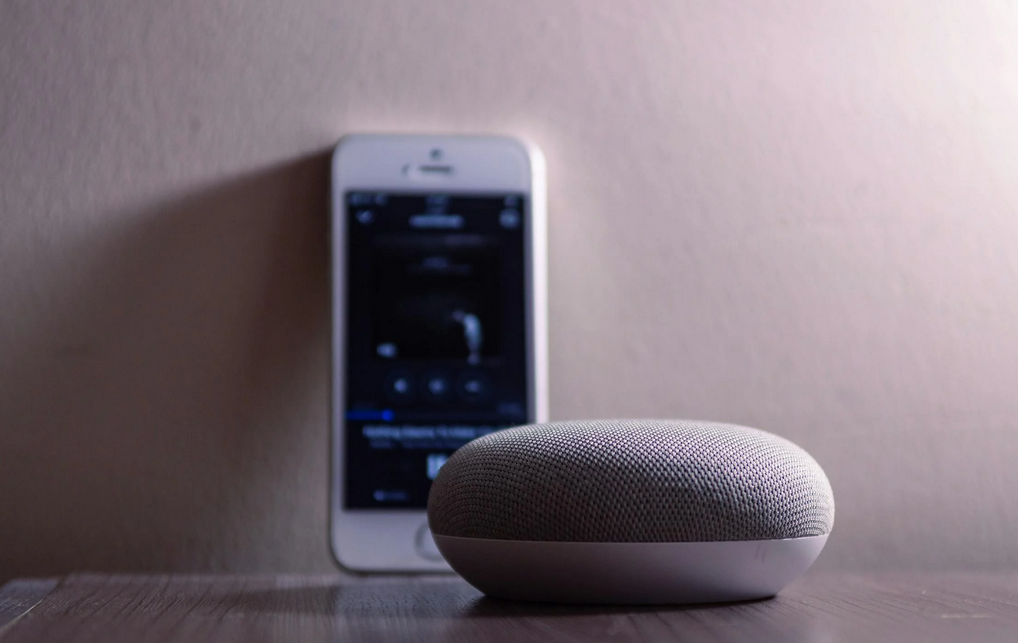 One of the most common reasons Bluetooth fails is distance. Even though most modern devices boast a range of 30 feet or more, that range isn’t always reliable. Walls, furniture, and other electronics can interrupt the signal. Try to keep paired devices in the same room, or at least within sight of each other. The farther apart they are, the greater the chance of signal degradation. If you’re constantly moving in and out of range, expect to experience drops or lag. Keeping devices nearby ensures stronger, steadier connections.
Avoid Signal Interference
Bluetooth operates on the 2.4 GHz frequency, the same as many Wi-Fi routers, microwaves, and baby monitors. This shared frequency can create interference. You may notice audio stutters or devices randomly disconnecting. If that happens, try moving away from your router or turning off nearby devices that use the same frequency. In homes with many wireless signals, this issue becomes more common. To reduce interference, reposition devices or experiment with router channel settings. A small shift can have a big impact on performance.
Charge Your Devices Properly
Low battery levels can impact how Bluetooth performs. Many devices, especially wireless earbuds or fitness trackers, reduce functionality when the battery is low to conserve power. This can lead to sluggish performance or even dropped connections. Always charge your devices properly. Don’t just rely on quick top-ups. Fully charging a device allows it to maintain a strong, steady connection. Also, some accessories don’t pair well when charging, so check whether your device connects best when unplugged.
Keep Firmware and Software Updated
Device manufacturers often release updates that improve Bluetooth stability. These updates can address bugs, optimize connectivity, or enhance compatibility with newer devices. Ignoring them can leave you stuck with outdated performance. Whether it’s your phone, laptop, or headphones, always check for the latest updates. Updating firmware ensures your devices communicate as efficiently as possible. Even if everything seems to be working fine, regular updates help prevent future issues. It’s a small step that can lead to major improvements.
Reset and Re-Pair When Necessary

Sometimes, all it takes is a fresh start. If you’re experiencing consistent issues, delete the device from your Bluetooth list and re-pair it. This resets the connection and clears out temporary glitches. It also prompts the devices to re-establish their communication protocol, which can often solve persistent problems. Think of it as rebooting a conversation between two gadgets. When nothing else works, this basic step can restore functionality. Use it as a first line of defense when you run into trouble.
Unpair Devices You No Longer Use
Too many saved connections can slow things down. Devices like phones and computers often store a list of previously connected Bluetooth gear. Over time, this list gets cluttered. A long pairing history may confuse your device, causing it to connect to the wrong item or take longer than usual. Go through your Bluetooth settings and remove devices you no longer use. This streamlines future connections and makes active pairing more reliable. It’s a quick fix that helps cut down on lag and improves response time.
Bluetooth has come a long way, but it still needs some help to run at its best. Keeping your devices charged, updated, and within range can make a real difference. Avoiding interference and limiting the number of active connections also plays a big role. These small adjustments add up and create a smoother, more consistent experience. With the utmost attention …